Getting Started with Databricks for Big Data Analysis
Learn how to set up Databricks, create your first Spark cluster, upload data, and run PySpark notebooks for scalable big data analysis.
Databricks is a cloud-based analytics platform built to simplify big data and AI workflows. It combines Apache Spark with collaborative notebooks, managed clusters, and a unified workspace so teams can process large datasets efficiently.
This guide walks through the basic steps to start analyzing data in Databricks.
Why Databricks for Big Data Analysis?
Databricks helps reduce operational overhead and accelerates data workflows:
- Built-in support for Apache Spark at scale.
- Collaborative notebooks for Python, SQL, Scala, and R.
- Managed clusters with autoscaling and easy configuration.
- Integration with cloud storage and modern data pipelines.
Prerequisites
Before starting, make sure you have:
- A Databricks account (Community Edition or cloud workspace).
- Basic familiarity with Python and data analysis.
- A sample CSV dataset for testing.
Step 1: Set Up Your Databricks Workspace
- Create an account at Databricks.
- Log in and open your workspace.
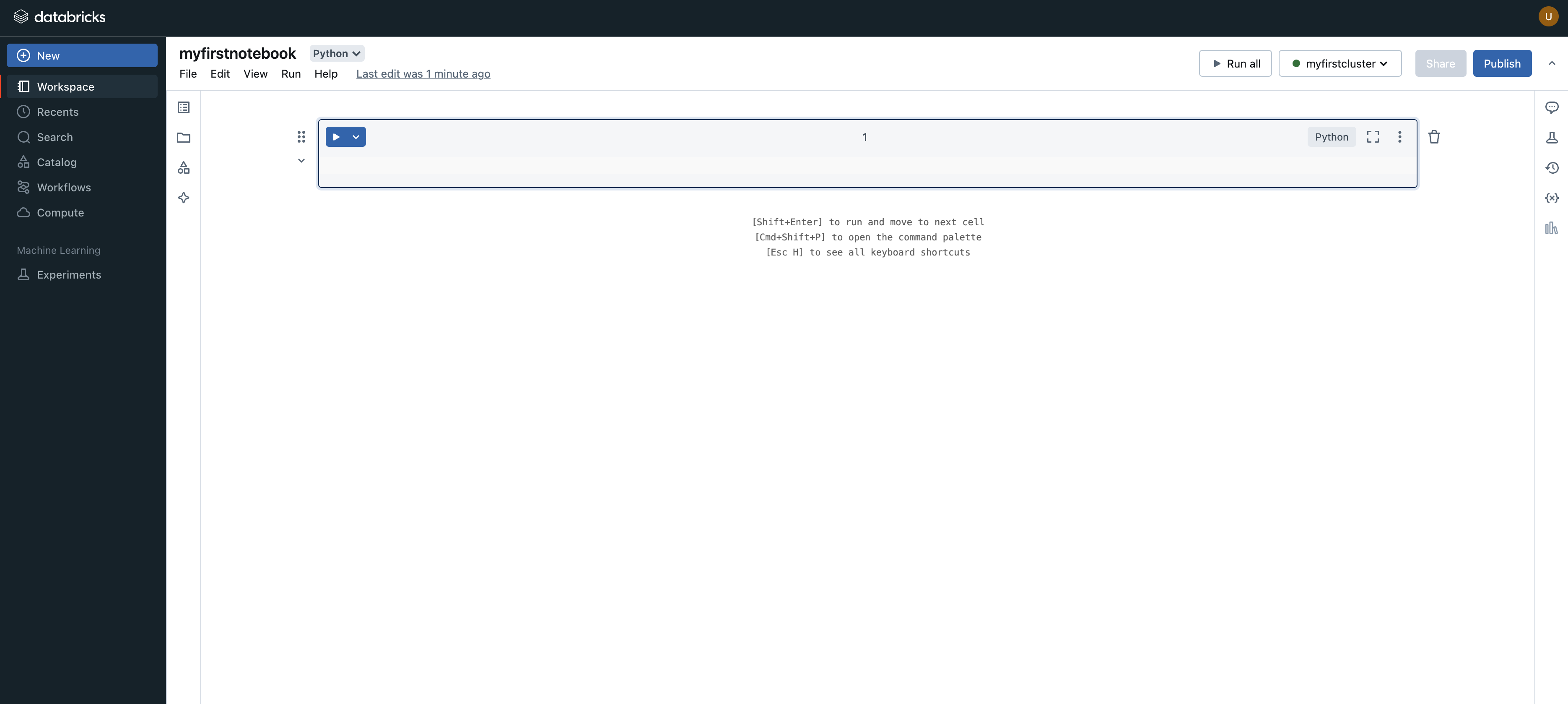
- Create a new notebook from the workspace UI.
Step 2: Create a Cluster
To run your notebooks, you need a Spark cluster:
- Go to the
Computesection. - Click
Create Cluster. - Choose a cluster name and runtime.
- Start the cluster and wait until it is running.
For first-time use, keep defaults to minimize setup complexity.
Step 3: Upload a Sample Dataset
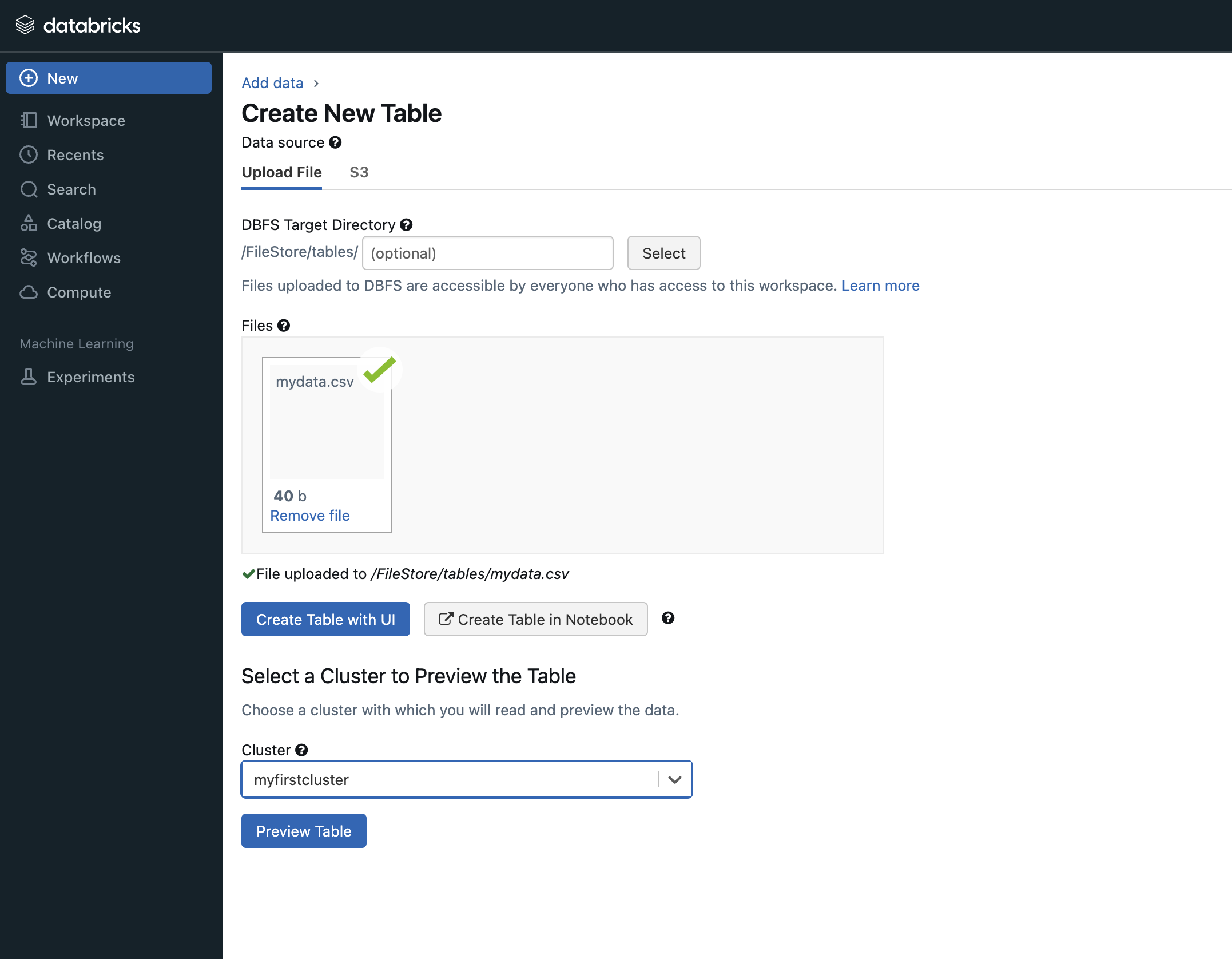
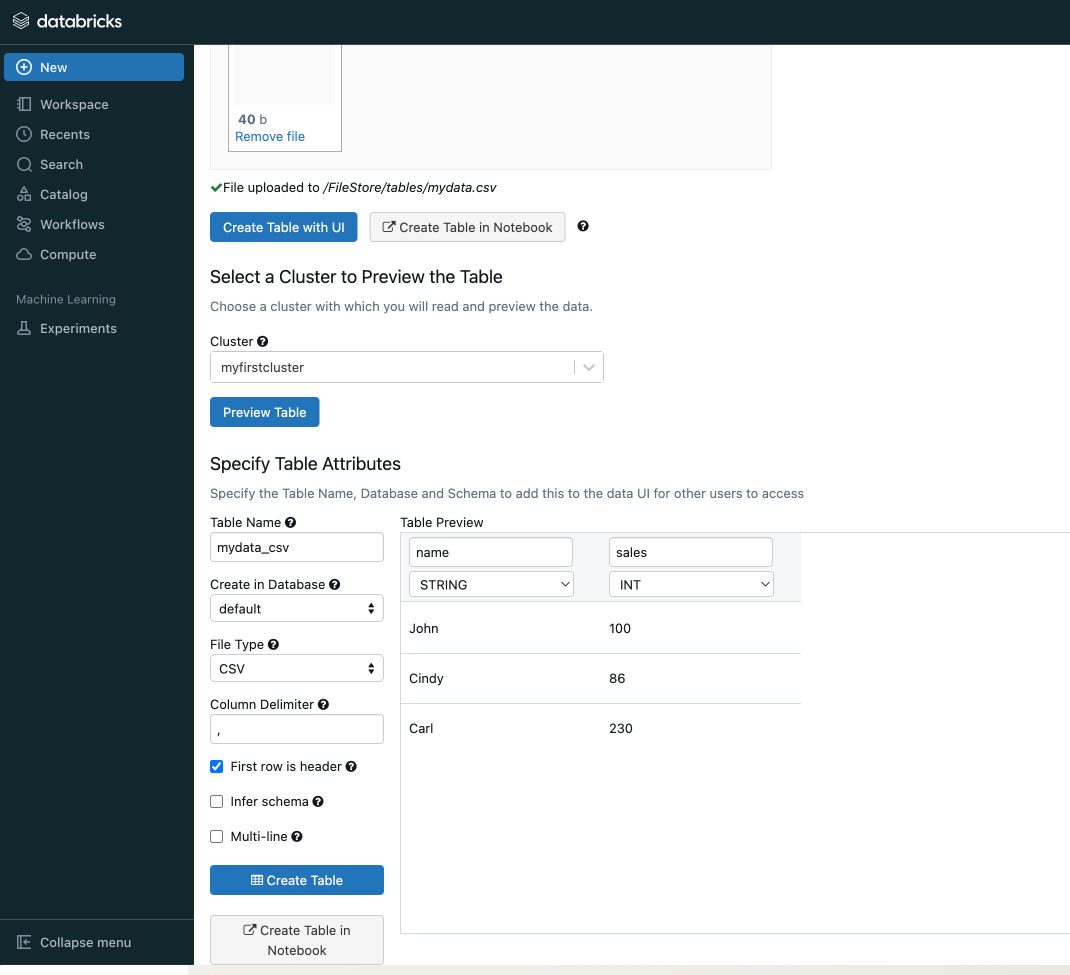
- Open the
Datatab and select upload. - Add your CSV file.
- Note the storage path generated by Databricks (for example under
/dbfs/FileStore/tables/).
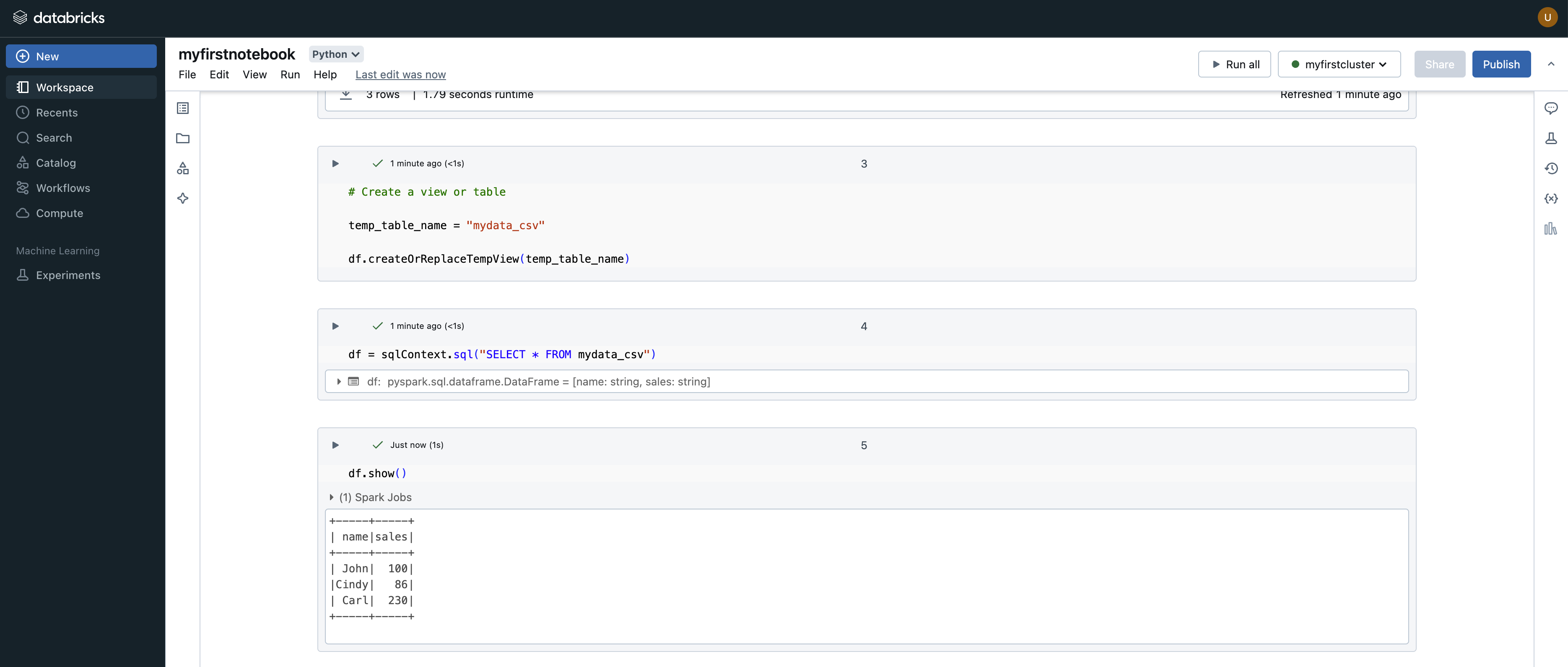
Step 4: Run Your First PySpark Notebook
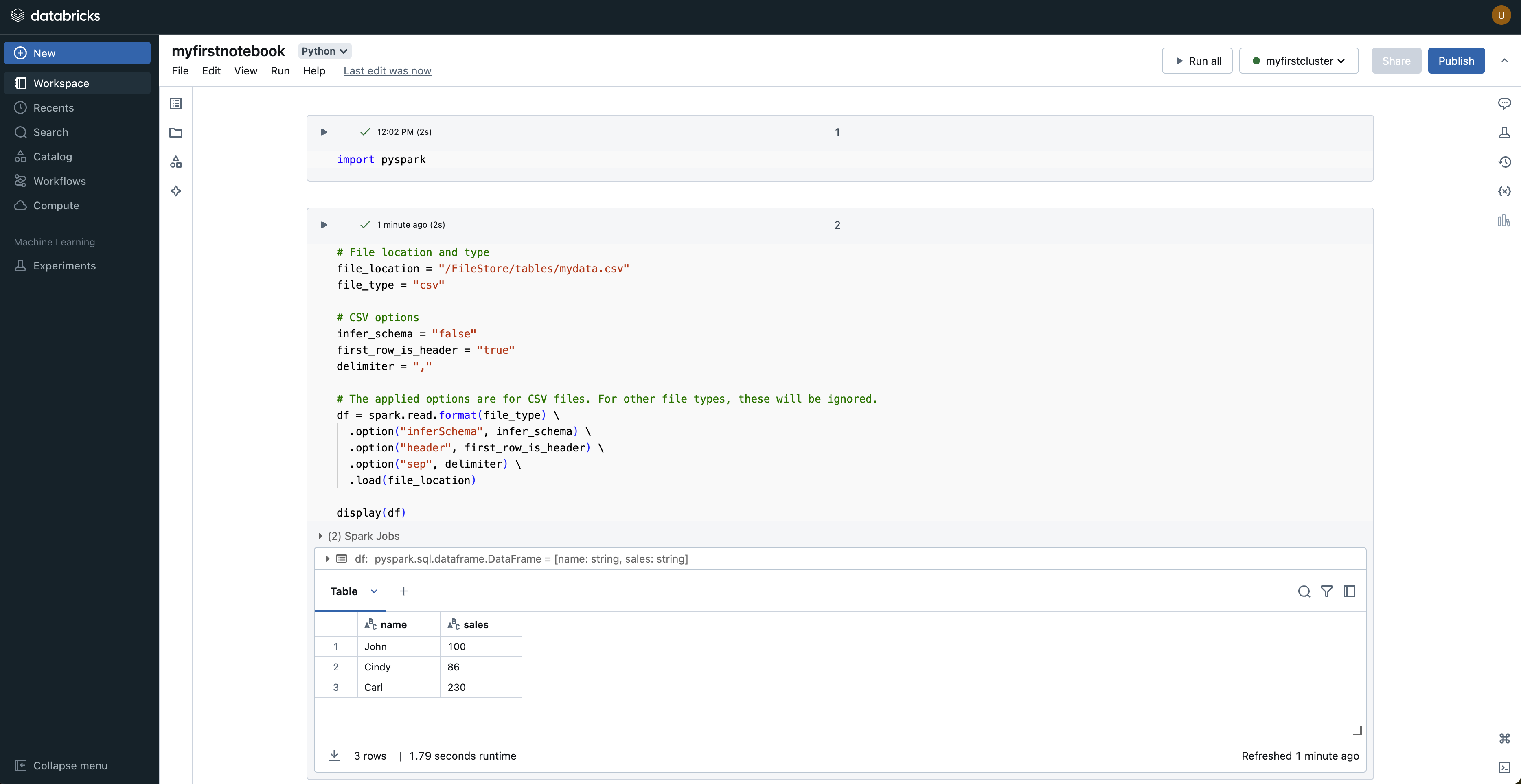
Use the following code in a notebook cell:
from pyspark.sql import SparkSession

spark = SparkSession.builder.appName("SampleApp").getOrCreate()
df = spark.read.csv("/dbfs/FileStore/tables/sample_data.csv", header=True, inferSchema=True)
df.show()
This loads your dataset into a Spark DataFrame and previews rows.
Step 5: Perform Basic Data Analysis
Try a few standard operations:
df.printSchema()
df.describe().show()
df.groupBy("category").count().show()
These commands help inspect data types, summary statistics, and simple grouped counts.
Step 6: Visualize Results
Databricks notebooks support quick visualizations:
- Run a query and keep the result in a table output.
- Use the built-in chart options to switch to bar, line, or other plots.
- Iterate quickly by adjusting code and chart settings.
Practical Tips
- Start with a small cluster and scale only when needed.
- Cache frequently reused DataFrames for performance.
- Use clear notebook markdown sections for readability.
- Move repeatable logic into reusable functions or jobs.
Conclusion
Databricks provides a practical, scalable environment for big data analysis. With a workspace, a running cluster, and PySpark notebooks, you can quickly move from raw files to meaningful insights.
If you are new to Spark, Databricks is one of the fastest ways to get productive with big data workflows.
Disclaimer of liability
The information provided by the Earth Inversion is made available for educational purposes only.
Whilst we endeavor to keep the information up-to-date and correct. Earth Inversion makes no representations or warranties of any kind, express or implied about the completeness, accuracy, reliability, suitability or availability with respect to the website or the information, products, services or related graphics content on the website for any purpose.
UNDER NO CIRCUMSTANCE SHALL WE HAVE ANY LIABILITY TO YOU FOR ANY LOSS OR DAMAGE OF ANY KIND INCURRED AS A RESULT OF THE USE OF THE SITE OR RELIANCE ON ANY INFORMATION PROVIDED ON THE SITE. ANY RELIANCE YOU PLACED ON SUCH MATERIAL IS THEREFORE STRICTLY AT YOUR OWN RISK.