Caffeinate On and Off Controls for macOS with Alfred and SwiftBar
I often want my Mac to stay awake while a long-running script, download, upload, or remote session is active. The built-in caffeinate command is perfect for this, but it is easy to forget whether it is currently running.
This setup gives me two controls:
- Two separate Alfred workflows for quickly turning
caffeinateon or off. - A SwiftBar menu bar item that shows the current status and also provides clickable controls.
The result is simple: type cafon when I want the Mac to stay awake, type cafoff when I am done, and glance at the menu bar to see whether it is active.
The Final Setup
The setup has three parts:
Alfred workflow 1: cafon  -> start caffeinate
Alfred workflow 2: cafoff -> stop caffeinate
SwiftBar CAF  -> show status and provide menu clicks
When caffeinate is running, SwiftBar shows:
🟢 CAF
When it is off, SwiftBar shows:
◦ CAF
The text is intentionally short because menu bar space is valuable.
Step 1: Create the Alfred On Workflow
In Alfred 5, create a new workflow. Add a Keyword input:
- Keyword:
cafon - Title:
Caffeinate On - Subtext:
Keep the Mac awake - Argument:
No Argument
Connect it to a Run Script action using /bin/zsh and this script:
pkill caffeinate 2>/dev/null
caffeinate -dimsu &
This first stops any older caffeinate process, then starts a fresh one in the background.
Optionally connect the script to Alfred’s Post Notification output:
- Title:
Caffeinate On - Text:
Mac will stay awake
The final Alfred canvas for the on workflow should look like this: keyword, run script, then post notification.
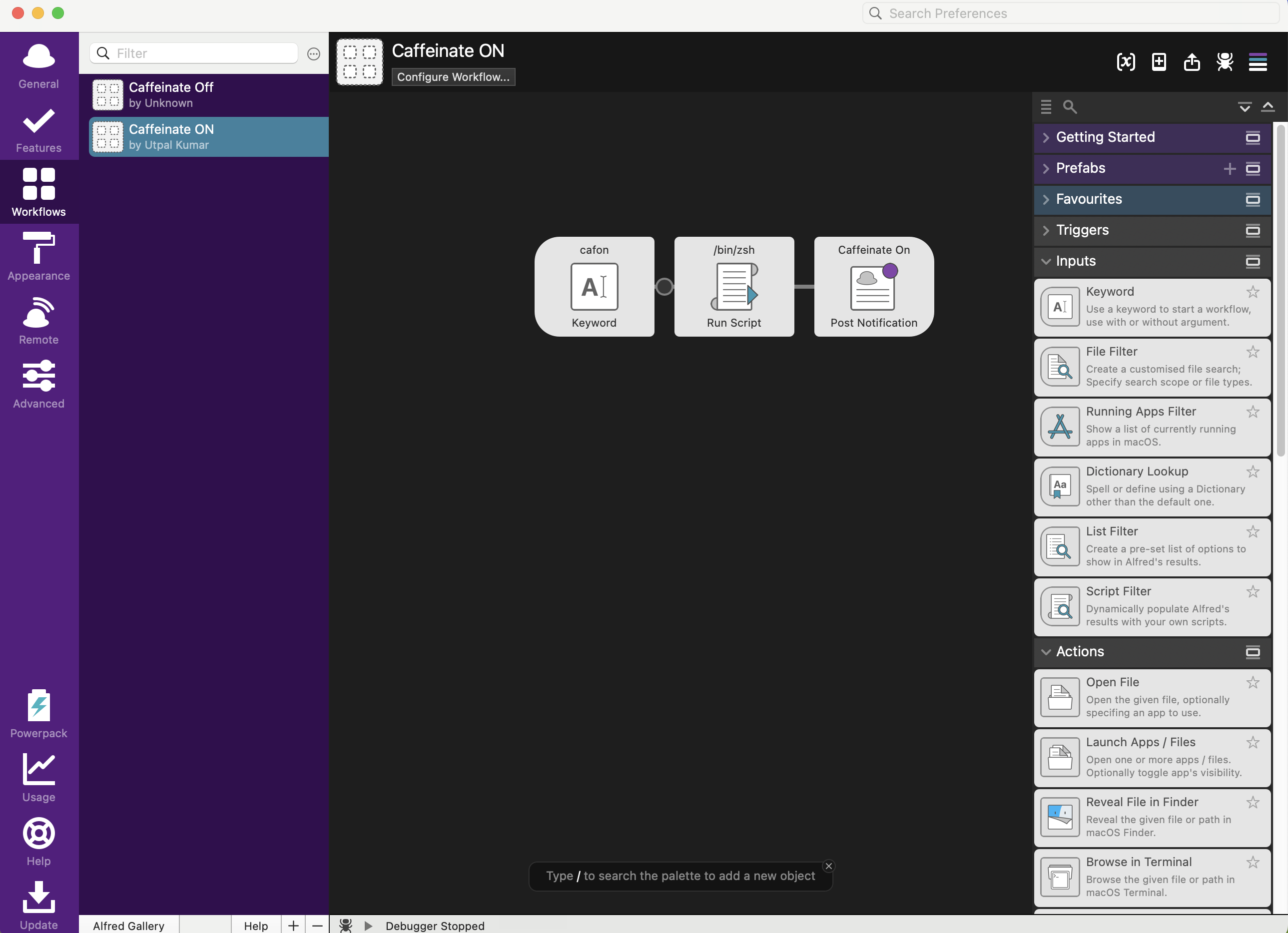
I prefer Alfred’s built-in notification block over calling osascript from the shell because macOS notification permissions can be inconsistent for shell-launched notifications.
Step 2: Create the Alfred Off Workflow
Create a second Alfred workflow for turning caffeinate off. Add a Keyword input:
- Keyword:
cafoff - Title:
Caffeinate Off - Subtext:
Allow the Mac to sleep normally - Argument:
No Argument
Connect it to another Run Script action:
pkill caffeinate 2>/dev/null
These are the only shell commands used in the two Alfred workflows. Everything later in the SwiftBar section is for the menu-bar status indicator, not for the Alfred keyword workflows.
Optionally connect this to another Post Notification output:
- Title:
Caffeinate Off - Text:
Mac can sleep normally
The off workflow uses the same three-block pattern, but it is a separate Alfred workflow with the cafoff keyword and Caffeinate Off notification label.
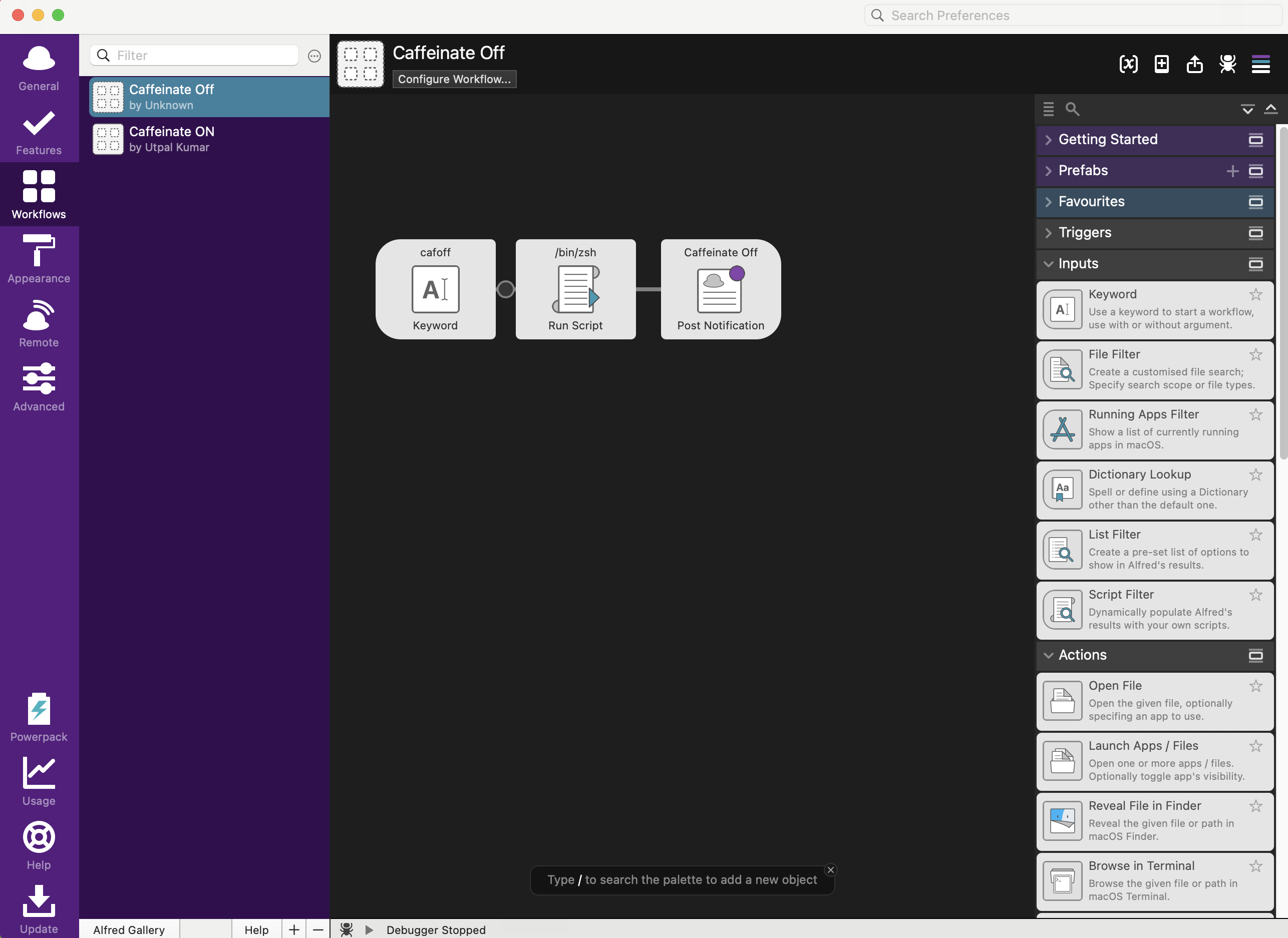
At this point, Alfred can already control caffeinate. The remaining problem is visibility: after a notification disappears, I still want a persistent status indicator.
Step 3: Install SwiftBar
Install SwiftBar with Homebrew:
brew install swiftbar
Create a plugin folder in your home directory:
mkdir -p ~/SwiftBarPlugins
Open SwiftBar and set its plugin folder to:
~/SwiftBarPlugins
If the file picker does not expand ~, use the full path to your home directory, for example:
/Users/yourname/SwiftBarPlugins
Step 4: Add the SwiftBar Status Plugin
The SwiftBar script is separate from the two Alfred workflows above. Alfred handles the keyboard commands; SwiftBar watches whether caffeinate is running and shows the current state in the menu bar.
Do not paste this longer script into either Alfred workflow. The Alfred scripts are only the short cafon and cafoff commands shown above.
The on and off branches inside this SwiftBar script are only for the optional dropdown buttons in the menu bar. They let the menu item itself provide Turn On and Turn Off actions, but they are not replacing the two separate Alfred workflows.
Create this file:
~/SwiftBarPlugins/caffeinate.5s.sh
The 5s in the filename tells SwiftBar to refresh the plugin every five seconds.
Paste this script into the SwiftBar plugin file:
#!/bin/zsh

# <xbar.title>Caffeinate Status</xbar.title>
# <xbar.version>v1.0</xbar.version>
# <xbar.author>Utpal Kumar</xbar.author>
# <xbar.desc>Shows whether caffeinate is running and allows turning it on or off.</xbar.desc>

SCRIPT_PATH="${SWIFTBAR_PLUGIN_PATH:-${0:A}}"

if [[ "$1" == "on" ]]; then
  pkill caffeinate 2>/dev/null
  caffeinate -dimsu >/dev/null 2>&1 &
  exit 0
fi

if [[ "$1" == "off" ]]; then
  pkill caffeinate 2>/dev/null
  exit 0
fi

if pgrep -x caffeinate >/dev/null 2>&1; then
  echo "🟢 CAF | color=green"
  echo "---"
  echo "Status: ON"
  echo "Mac will stay awake"
  echo "Turn Off | bash=$SCRIPT_PATH param1=off terminal=false refresh=true"
else
  echo "◦ CAF | color=#8A8A8A"
  echo "---"
  echo "Status: OFF"
  echo "Mac can sleep normally"
  echo "Turn On | bash=$SCRIPT_PATH param1=on terminal=false refresh=true"
fi

echo "---"
echo "Refresh | refresh=true"
Make it executable:
chmod +x ~/SwiftBarPlugins/caffeinate.5s.sh
Then refresh SwiftBar. The menu bar should show either 🟢 CAF or ◦ CAF.
Step 5: Test the Setup
Turn it on from Alfred:
cafon
Wait a few seconds. SwiftBar should change to:
🟢 CAF
You can also verify from Terminal:
pgrep -x caffeinate
If it prints a process ID, caffeinate is running.
Turn it off:
cafoff
SwiftBar should switch back to:
◦ CAF
Now pgrep should return nothing:
pgrep -x caffeinate
You can also click the SwiftBar menu item directly and use Turn On or Turn Off from the dropdown.
Small Troubleshooting Notes
If Alfred runs the command but the notification does not appear, check System Settings -> Notifications -> Alfred 5 and make sure notifications are allowed. The actual on/off command may still be working even if the notification is hidden.
If SwiftBar does not show the item, check three things:
- The plugin folder is set to
~/SwiftBarPlugins. - The plugin file is executable.
- The filename ends with
.5s.sh.
This setup assumes this is the only caffeinate process you care about. The pkill caffeinate line intentionally stops any existing caffeinate process before changing state.
If the status looks stale, click SwiftBar and choose Refresh All.
Why I Like This Setup
Alfred is fast for commands I already know. SwiftBar is better for persistent state. Combining them gives me both: keyboard control and a menu bar reminder.
For long scripts, remote sessions, and unattended jobs, that small CAF indicator is enough to avoid guessing whether the Mac is allowed to sleep.
Disclaimer of liability
The information provided by the Earth Inversion is made available for educational purposes only.
Whilst we endeavor to keep the information up-to-date and correct. Earth Inversion makes no representations or warranties of any kind, express or implied about the completeness, accuracy, reliability, suitability or availability with respect to the website or the information, products, services or related graphics content on the website for any purpose.
UNDER NO CIRCUMSTANCE SHALL WE HAVE ANY LIABILITY TO YOU FOR ANY LOSS OR DAMAGE OF ANY KIND INCURRED AS A RESULT OF THE USE OF THE SITE OR RELIANCE ON ANY INFORMATION PROVIDED ON THE SITE. ANY RELIANCE YOU PLACED ON SUCH MATERIAL IS THEREFORE STRICTLY AT YOUR OWN RISK.
Leave a comment