How to set up SSH-Keys for Github
While using Github, you may have noticed that using username and password for making commits and pushing repos do not work anymore. This is because Github no longer accepts password authentication for the security reasons. Github recommends to use token-based authentication instead. There are a few different options for that - SSH Keys, Personal Access Key, OAuth. In this post, I will cover how to set up SSH Keys for the github authentication.
The one mental model
An SSH key is a pair: a private key that never leaves your machine and a matching
public key you upload to GitHub. You share the public half once; then every git
operation proves — cryptographically — that you hold the private half, without ever sending it. That’s
why you stop typing passwords, and why a lost laptop just means revoking one key.
SSH-Key
When we create a ssh-key on a machine, it uniquely identifies the machine. After sharing this identity with Github, it can trust the machine and allows to do operations (such as commit, push, clone, etc). This is very handy for security reasons. When our computer gets stolen, we can revoke that ssh key. Also, github revokes inactive keys after one year.
Next, we will see how to set up the SSH Key on our computer and share it with Github.
How to create private and public ssh keys
We will see how we can create both private and public ssh keys. The private key is for the machine and must not be shared with anyone in any case. The public key is designed to be shared and this is what we will share with the Github.
Generate a key
ssh-keygen -t ed25519 -C myemail@gmail.com
Here, we use ssh-keygen to generate key, ed25519 is the type of encryption for the key, and myemail@gmail.com is the email associated with the key.
Why ed25519? It’s the modern algorithm GitHub recommends — shorter keys, strong security, and
fast. (If you’re on very old tooling that lacks it, -t rsa -b 4096 is the fallback, but prefer
ed25519 whenever you can.)
When you execute this command, you will be prompted for the location of the key (you can go with the default), and the extra layer of passphrase (you can chose to leave it empty).
$ ssh-keygen -t ed25519 -C myemail@gmail.com
 config
Generating public/private ed25519 key pair.
Enter file in which to save the key (/mymachinepath/.ssh/id_ed25519):
Enter passphrase (empty for no passphrase):
Enter same passphrase again:
Your identification has been saved in /mymachinepath/.ssh/id_ed25519.
Your public key has been saved in /mymachinepath/.ssh/id_ed25519.pub.
The key fingerprint is:
SHA256:OTG86YNFSApYGfumdklUdTqN0w9zLKRQS3BU myemail@gmail.com
The key's randomart image is:
+--[ED25519 256]--+
|                 |
|                 |
|                 |
|                 |
|                 |
|                 |
|                 |
|                 |
|                 |
+----[SHA256]-----+
Note that the above output has been edited for security reasons.
Add private key to the ssh-agent
First, we need to start the agent:
eval "$(ssh-agent -s)"
Then, we can create/edit the config file
touch ~/.ssh/config
We need to add following lines to the ~/.ssh/config file:
Host *
  AddKeysToAgent yes
  IdentityFile ~/.ssh/id_ed25519
The last part is to run the ssh-add command:
ssh-add ~/.ssh/id_ed25519
macOS tip: to have the Keychain remember a key passphrase across reboots, add UseKeychain yes
under Host * and run ssh-add --apple-use-keychain ~/.ssh/id_ed25519.
Add ssh public key to GitHub
On Github, go to Settings and then SSH and GPG keys: Github keys
Next, click on the New SSH key button to create a new key.
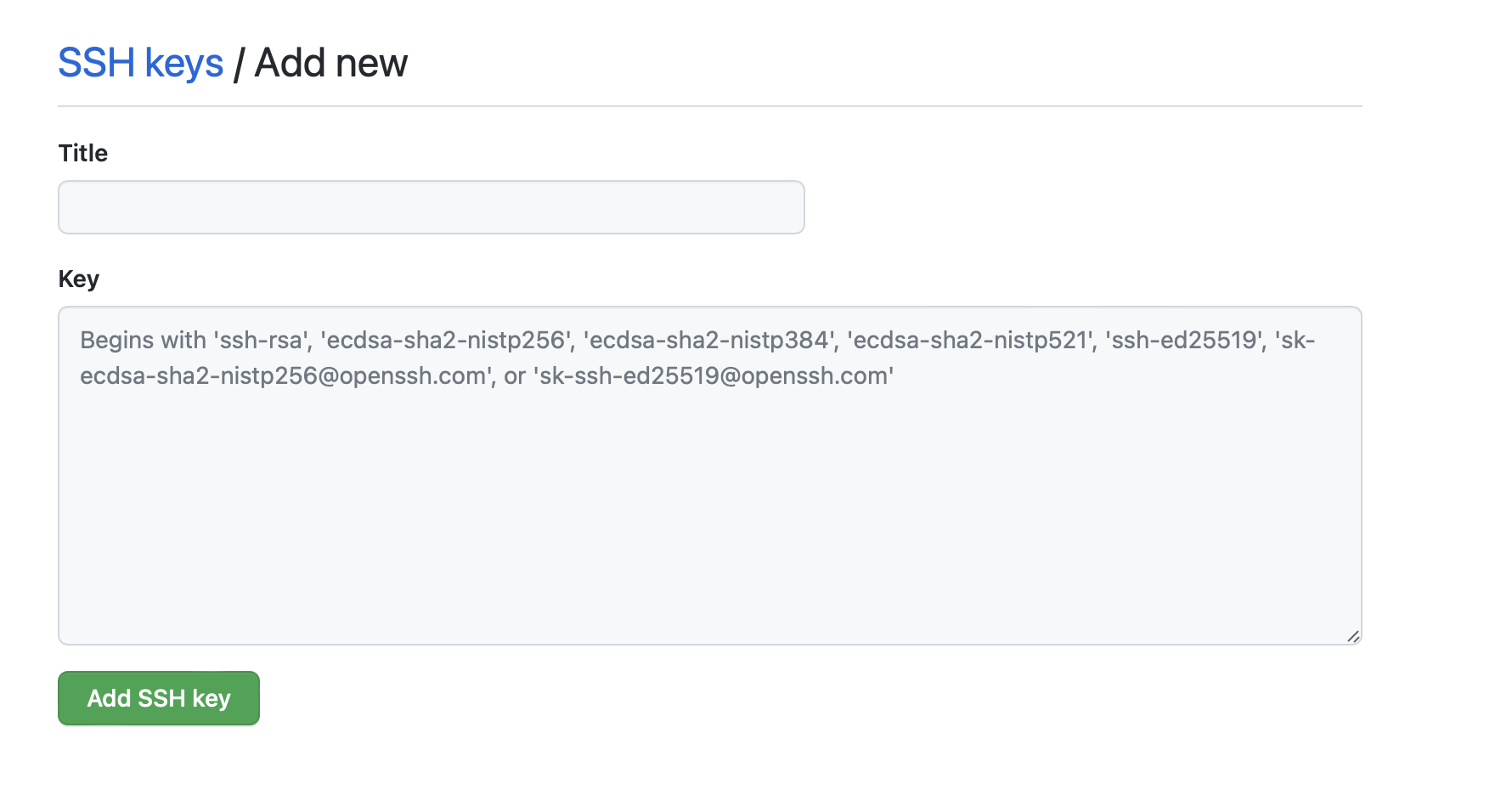
Copy the contents of ~/.ssh/id_ed25519.pub file and paste it in the key box.
cat ~/.ssh/id_ed25519.pub
That’s it. Now, you have SSH-Keys set up for your machine.
Which file's contents do you paste into GitHub's "New SSH key" box?
Authenticate the setup
You can authenticate the setup by running this command on your machine.
ssh -T git@github.com
Clone a repo using ssh
You can now easily clone your repo without getting the prompts for the username and passwords. For example:
git clone git@github.com:earthinversion/SystemMonitorApp.git
Notice the git@github.com: in the front of the url for cloning using ssh.
Recap
Without scrolling up — can you summarize the setup?
- Generate an
ed25519key pair withssh-keygen, - Load the private key into the ssh-agent (and reference it in
~/.ssh/config), - Upload the public key (
id_ed25519.pub) to GitHub → Settings → SSH and GPG keys, - Test with
ssh -T git@github.com, then clone/push over thegit@github.com:URL — no passwords.
The private key never leaves your machine; that asymmetry is the whole security model.
References
- Connecting to GitHub with SSH — GitHub’s official documentation.
Disclaimer of liability
The information provided by the Earth Inversion is made available for educational purposes only.
Whilst we endeavor to keep the information up-to-date and correct. Earth Inversion makes no representations or warranties of any kind, express or implied about the completeness, accuracy, reliability, suitability or availability with respect to the website or the information, products, services or related graphics content on the website for any purpose.
UNDER NO CIRCUMSTANCE SHALL WE HAVE ANY LIABILITY TO YOU FOR ANY LOSS OR DAMAGE OF ANY KIND INCURRED AS A RESULT OF THE USE OF THE SITE OR RELIANCE ON ANY INFORMATION PROVIDED ON THE SITE. ANY RELIANCE YOU PLACED ON SUCH MATERIAL IS THEREFORE STRICTLY AT YOUR OWN RISK.
Leave a comment